Skip to content

Windows VPN App
Secure VPN for Windows

Protect your connection on Windows, stream across regions, game with more privacy, and browse without exposing your real IP address.

30-day money-back guarantee

Available on

Windows

VPN Application
Manual Setup

Windows

macOS

VPN Application
Manual Setup

macOS

iOS

VPN Application
Manual Setup

iOS

Android

VPN Application
Manual Setup

Android

Linux

Manual Setup

Linux

Smart TVs

Manual Setup

Smart TVs
Smart TVs

Apple TV

Manual Setup

Apple TV
Apple TV

Fire TV

Manual Setup

Fire TV
Fire TV

Xbox

Manual Setup

Xbox
Xbox

PlayStation

Manual Setup

PlayStation
PlayStation

What is a Windows VPN app?

GatewayVPN is a VPN for Windows that encrypts your internet traffic and hides your IP, keeping browsing, streaming, and work on your PC private and secure. It creates an encrypted tunnel to a VPN server for safer public-Wi-Fi, stronger privacy, and access to region-locked content.

Why Use a VPN For Windows?

A Windows VPN protects your privacy, secures your connection, and gives you more control over how your traffic is routed.

Protect your privacy

Hide your real IP address behind a VPN IP and keep browsing activity private from your internet provider.

Secure public Wi-Fi

Encrypt your Windows connection on public networks, including airports, hotels, cafés, and shared workspaces.

Access content abroad

Change your virtual location to access websites, apps, and streaming services while traveling.

Reduce tracking

Use a private VPN IP to reduce IP-based tracking across websites, advertisers, and online services.

How to Set Up The VPN For Windows

Follow the Windows setup guide to install GatewayVPN, sign in, choose a server, and connect on Windows 10 or 11.

01

Get GatewayVPN

Download the GatewayVPN Windows app and install it on your device.

02

Create an account

Sign up for a GatewayVPN account, choose a subscription plan, and log in.

03

Connect

Open the app and tap on a VPN server to connect.

How To Use The Windows VPN App

Connect to a VPN server, control security settings, change protocols, and manage split tunneling from the Windows app.

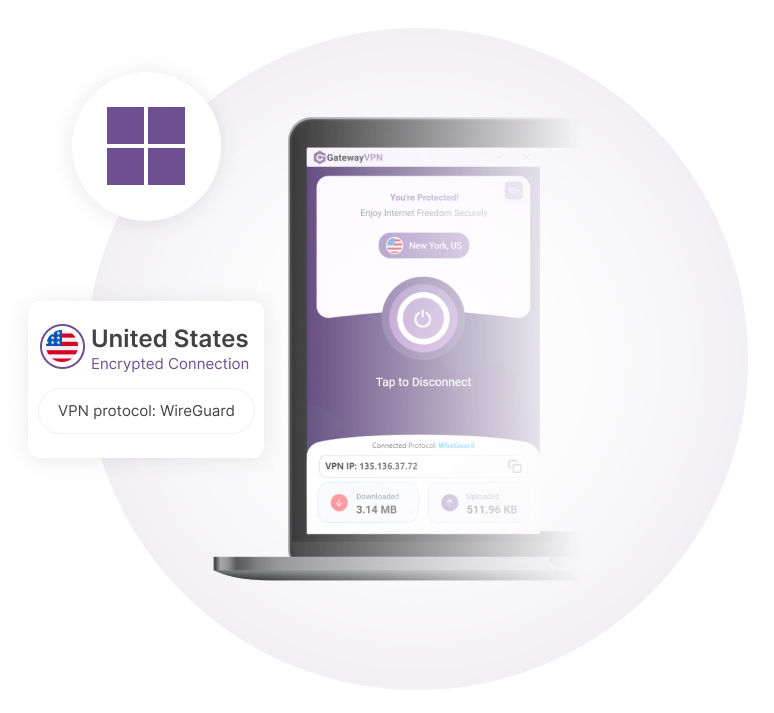
Open the GatewayVPN Windows app, sign in, and choose a server location from the locations menu. Select a nearby server for lower latency, or choose another country to change your virtual location.

Click Connect or simply tap on the server location to start the VPN connection. Once connected, your traffic is routed through the encrypted VPN tunnel.

Open the app settings and go to the kill switch option. Turn it on to block internet traffic if the VPN connection drops.

This keeps your real IP address from being exposed during unexpected connection interruptions.

Open "preferences" in the menu and go to the "protcols" tab. Switch to "manual protocol selection" and choose the VPN protocol you want to use. WireGuard is recommended for fast, stable connections, while OpenVPN UDP/TCP is useful when you need a widely supported VPN protocol.

Reconnect to apply the selected protocol.

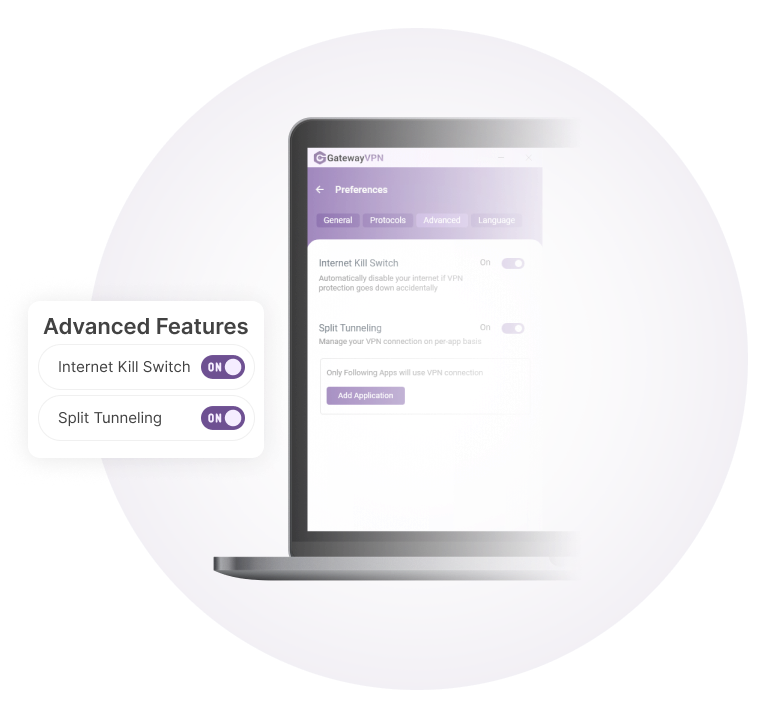
Open "preferences" in the menu and go to the "advanced" tab. Switch the split tunneling feature on. Then, choose which apps use the encrypted VPN tunnel. Apps left outside split tunneling continue through your regular internet connection.

Use split tunneling when you want privacy for selected apps while keeping local services, banking apps, or other tools on your direct connection.

GatewayVPN Windows app settings showing Internet Kill Switch and Split Tunneling enabled

VPN Features Built For Windows

Use GatewayVPN on Windows 10 and 11 to protect your privacy, secure your connection, and access content abroad with stable VPN servers.

Encrypted VPN connection

Encrypt your Windows connection to keep browsing activity private from your internet provider and unsecured networks.

Private VPN IP address

Hide your real IP address behind a VPN IP and reduce tracking across websites, apps, and online services.

WireGuard and OpenVPN

Connect with secure VPN protocols built for reliable performance, including WireGuard and OpenVPN support on Windows.

Kill switch protection

Block internet traffic if the VPN connection drops, so your real IP address is not exposed during interruptions.

Split tunneling

Choose which Windows apps use the encrypted VPN tunnel and which apps connect directly through your regular internet connection.

Global server locations

Connect to VPN servers across 60+ locations to change your virtual location, reduce routing issues, and access content abroad.

Money-Back Guarantee

If you are not completely satisfied with GatewayVPN, contact us within 30 days and we will send you a full refund.

Frequently Asked Questions

Our support team is available 24/7 to help keep you connected.

Is there a free VPN for Windows PCs?

Yes, free VPNs exist for Windows, but they usually come with serious trade-offs. Many free services limit speeds, restrict server options, and may even log or sell your data to third parties. They also often use weak or outdated encryption, putting your privacy at risk.

With GatewayVPN, you get strong AES-256 encryption, global server access, and unlimited bandwidth. Plus, you can try it risk-free with our 30-day money-back guarantee.

Does Windows 10 or 11 have a built-in VPN?

Windows 10 and 11 let you configure a VPN manually, but it requires technical setup and your own server details. It doesn’t come with built-in servers or encryption protocols. GatewayVPN removes the hassle with a ready-to-use app that connects you securely in one click.

Can I use GatewayVPN on multiple devices?

Yes. One GatewayVPN account covers up to 5 devices at the same time. Use it on your Windows PC, Mac, iOS, Android, or even Smart TVs — all with the same login.

Is GatewayVPN good for gaming on Windows?

Absolutely. GatewayVPN’s WireGuard protocol ensures low-latency connections, so you can game without lag while staying safe from DDoS attacks and ISP throttling.

Can a VPN improve streaming on Windows?

Yes! Many streaming platforms restrict content by region. GatewayVPN bypasses these geo-blocks, so you can access shows, movies, and websites that aren’t normally available in your country — all without sacrificing speed.

More questions? Contact us

Privacy Overview

This website uses cookies so that we can provide you with the best user experience possible. Cookie information is stored in your browser and performs functions such as recognising you when you return to our website and helping our team to understand which sections of the website you find most interesting and useful.