Skip to content

macOS VPN App
Fast VPN for macOS

Protect your privacy on Mac with encrypted VPN connections, a private VPN IP address, and stable servers across regions. Hide your real IP address, secure your traffic, and access content abroad from your macOS device.

30-day money-back guarantee

Available on

Windows

VPN Application
Manual Setup

Windows

macOS

VPN Application
Manual Setup

macOS

iOS

VPN Application
Manual Setup

iOS

Android

VPN Application
Manual Setup

Android

Linux

Manual Setup

Linux

Smart TVs

Manual Setup

Smart TVs
Smart TVs

Apple TV

Manual Setup

Apple TV
Apple TV

Fire TV

Manual Setup

Fire TV
Fire TV

Xbox

Manual Setup

Xbox
Xbox

PlayStation

Manual Setup

PlayStation
PlayStation

What is a macOS VPN app?

A VPN (virtual private network) encrypts your data and hides your IP address. In simple terms, it’s a service that secures your online activity and masks your digital location. With GatewayVPN for Mac, you get stronger privacy, safer browsing on public Wi-Fi, and unrestricted access to the open internet.

Why Use a VPN For macOS?

Use a VPN for macOS to hide your IP address, encrypt your traffic, and connect through secure VPN servers worldwide.

Hide your Real IP Address

Route your Mac connection through a private VPN IP address. This reduces tracking and keeps your real location harder to identify.

Encrypt your internet traffic

Secure your browsing, downloads, and app traffic with an encrypted VPN tunnel. This is especially important on public or shared Wi-Fi.

Access content abroad

Change your virtual location and connect through VPN servers in different countries. Streaming access may vary by platform and region.

Secure public Wi-Fi

Encrypt your Mac connection on shared Wi-Fi networks, including cafés, hotels, airports, and offices, where network traffic is easier to monitor.

How to Set Up The VPN For macOS

Follow the macOS setup guide to install GatewayVPN, sign in, choose a server, and connect on any macOS device.

01

Get GatewayVPN

Download the GatewayVPN macOS app and install it on your device.

02

Create an account

Sign up for a GatewayVPN account, choose a subscription plan, and log in.

03

Connect

Open the app and tap on a VPN server to connect.

How To Use The macOS VPN App

Install the macOS VPN app, sign in, choose a server, and connect. Your Mac traffic is encrypted through a secure VPN tunnel.

Launch the macOS VPN app and sign in. Pick a VPN location based on how you want to connect: nearby for lower latency, or another country to change your virtual location.

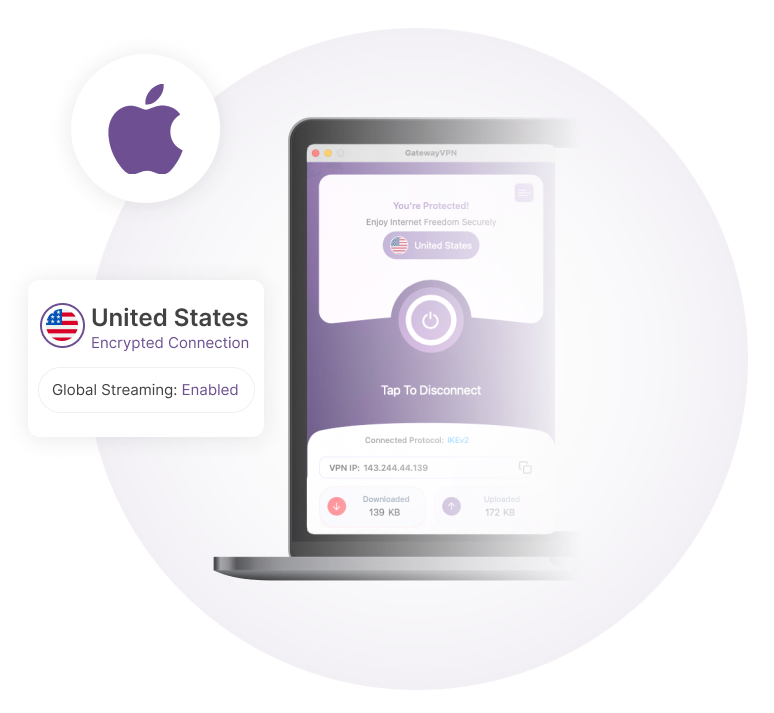
Select Connect to secure your Mac connection. Your traffic moves through an encrypted VPN tunnel and your real IP address is replaced with a VPN IP.

Open the app preferences and go to the kill switch setting. Turn it on to block internet traffic if the VPN connection drops.

This protects your real IP address during unexpected connection interruptions.

Open Preferences from the menu and go to the Protocols tab. Switch to manual protocol selection and choose the VPN protocol you want to use.

Use WireGuard for fast, stable connections. Use OpenVPN UDP or TCP when you need a widely supported VPN protocol. Reconnect to apply the selected protocol.

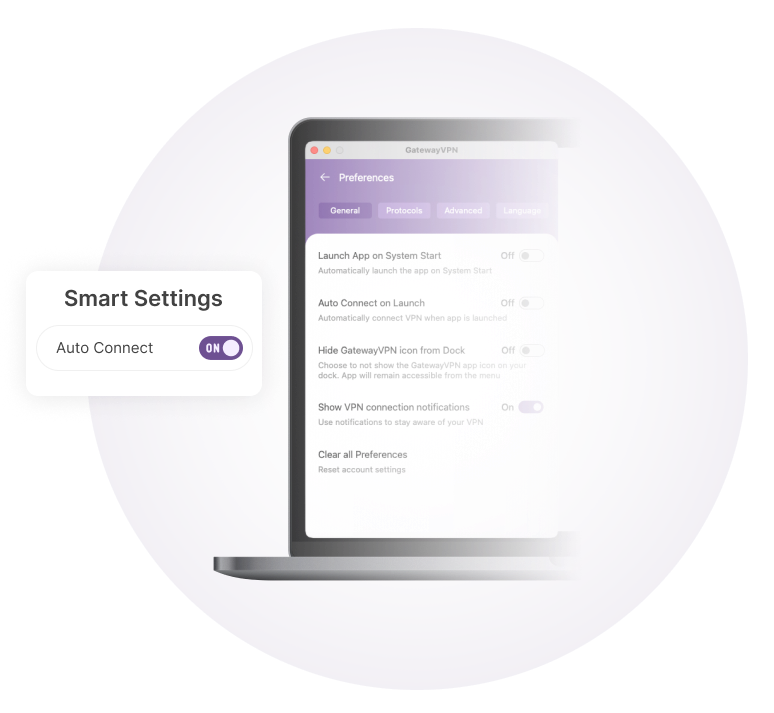
Open Preferences and go to the General tab. Turn on auto connect to start the VPN connection when the app launches.

Use auto connect to keep your Mac protected without connecting manually every time you open the app.

GatewayVPN macOS app showing smart settings with auto connect enabled

VPN Features Built For macOS

Secure your Mac with VPN features built for private browsing, encrypted connections, IP protection, and stable access across regions.

Encrypted VPN tunnel

Encrypt your Mac traffic to protect browsing, downloads, and app connections on trusted and shared networks.

macOS privacy protection

Protect your Mac browsing by routing traffic through an encrypted VPN connection instead of exposing your network directly.

VPN protocol control

Choose WireGuard for fast, stable connections or OpenVPN when you need a widely supported VPN protocol.

Kill switch protection

Keep your Mac protected during VPN interruptions. The kill switch blocks traffic if the VPN disconnects, reducing the risk of IP exposure.

DNS leak protection

Keep DNS requests inside the VPN tunnel to reduce leaks and protect your browsing activity from network-level tracking.

Auto connect

Start the VPN connection automatically when the app launches, so your Mac connects through a secure VPN tunnel sooner.

Money-Back Guarantee

If you are not completely satisfied with GatewayVPN, contact us within 30 days and we will send you a full refund.

Frequently Asked Questions

Our support team is available 24/7 to help keep you connected.

What is the best VPN for macOS?

The best VPN for macOS should encrypt your traffic, hide your real IP address, support secure VPN protocols, and include protection against connection drops.

Does a VPN work on Mac?

Yes. A VPN on Mac routes your internet traffic through an encrypted VPN tunnel and replaces your real IP address with a VPN IP.

Why should I use a VPN on macOS?

Use a VPN on macOS to protect your privacy, secure public Wi-Fi, reduce IP-based tracking, and change your virtual location when needed.

Can I use a VPN for streaming on Mac?

Yes. A VPN can change your virtual location so you can access content abroad. Streaming access may vary by platform, account region, and local restrictions.

Does a VPN slow down a Mac?

A VPN can affect speed because traffic is encrypted and routed through a VPN server. Nearby servers and fast protocols like WireGuard usually provide better performance.

More questions? Contact us

Privacy Overview

This website uses cookies so that we can provide you with the best user experience possible. Cookie information is stored in your browser and performs functions such as recognising you when you return to our website and helping our team to understand which sections of the website you find most interesting and useful.