VPN for iOS
Fast, Private VPN for iPhone and iPad
Protect your connection on public Wi-Fi, hide your real IP address, and keep everyday browsing private from your internet provider. A VPN for iOS also lets you change your virtual location, access content while traveling, and connect through fast, stable VPN servers on iPhone and iPad.
Available on
Windows
VPN Application
Manual Setup
macOS
VPN Application
Manual Setup
iOS
VPN Application
Manual Setup
Android
VPN Application
Manual Setup
Linux
Manual Setup
Smart TVs
Manual Setup
Apple TV
Manual Setup
Fire TV
Manual Setup
Xbox
Manual Setup
PlayStation
Manual Setup
What is an iOS VPN app?
An iOS VPN app secures internet traffic from your iPhone or iPad through an encrypted connection. It works across Safari and supported apps, hides your real IP address, protects data on public Wi-Fi, and lets you connect through servers in different countries without changing your device’s core network settings manually.
Why use a VPN on iPhone and iPad?
iOS includes strong built-in security, but your internet connection can still expose your IP address and online activity. A VPN encrypts your traffic, protects your connection, and gives you more control over how you access the internet.
Protect public Wi-Fi connections
Encrypt your traffic on shared networks in cafés, airports, hotels, and other public places. This reduces the risk of others on the network intercepting your data.
Hide your IP address
GatewayVPN replaces your real IP address with a private VPN IP. This reduces tracking and keeps your approximate location less exposed to websites and online services.
Access content while traveling
Connect to servers in different countries and change your virtual location. Access familiar websites and streaming services while abroad.
Secure traffic across your apps
A VPN protects more than browser traffic. GatewayVPN routes connections through an encrypted VPN tunnel, including email, shopping, and everyday browsing.
How to Set Up The VPN For iOS
Follow the iOS setup guide to install GatewayVPN, sign in, choose a server, and connect on any iOS device.
Connect
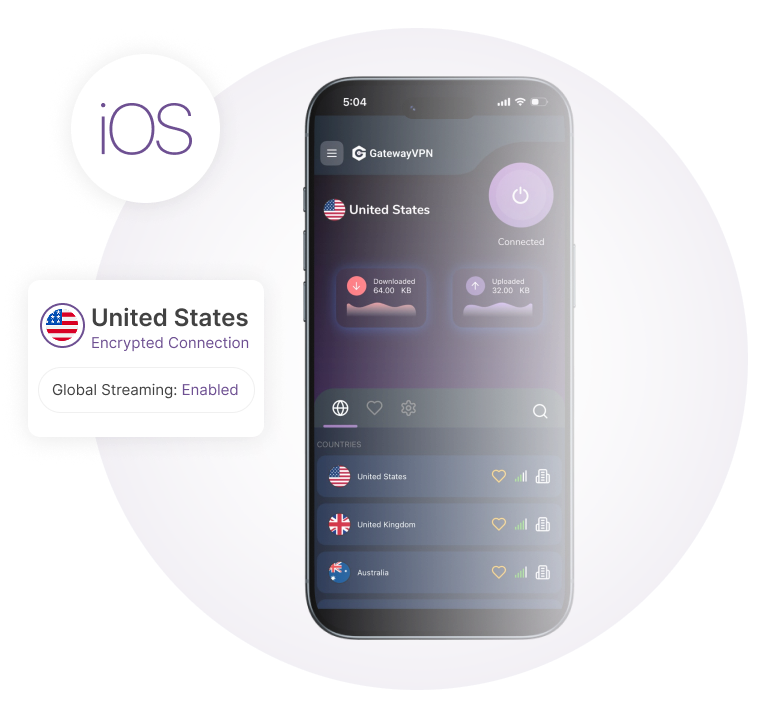
Open the app and tap on a VPN server to connect.
How To Use The iOS VPN App
Install the iOS VPN app, sign in, choose a server, and connect. Your iPhone/iPad traffic is encrypted through a secure VPN tunnel.
Open the GatewayVPN app on your iPhone or iPad and sign in. Choose a server location, then tap Connect.
GatewayVPN encrypts your internet traffic and replaces your real IP address with a VPN IP. Choose a nearby server for lower latency or another country to change your virtual location.
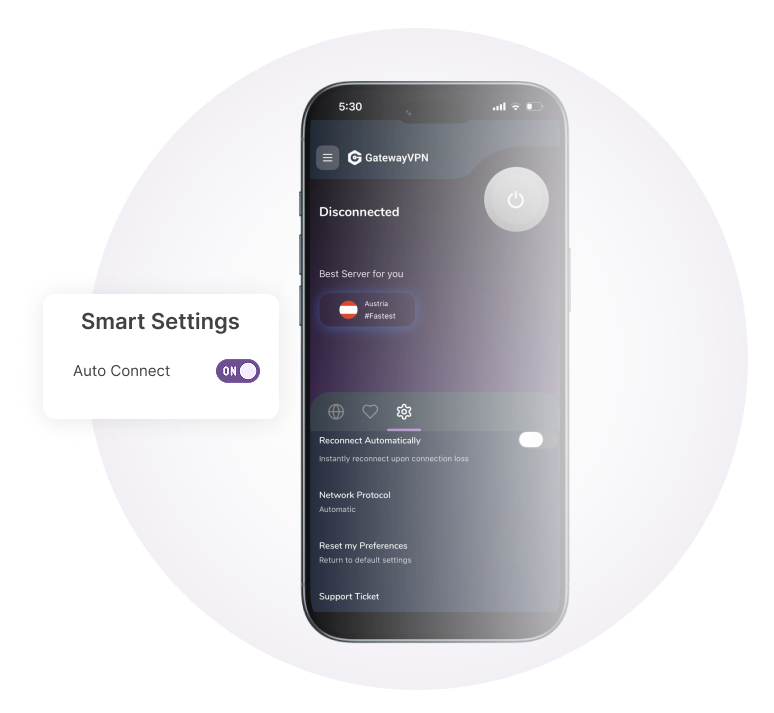
Select Best Server for You to let GatewayVPN choose a suitable server automatically. You can connect without comparing individual locations.
Use this option for a quick, stable connection when browsing, using everyday apps, or connecting to public Wi-Fi.

Open the Settings tab and switch on Reconnect Automatically. GatewayVPN restores the VPN connection after an unexpected interruption.
This keeps your connection protected when your iPhone or iPad moves between Wi-Fi and mobile data or briefly loses network access.
Open the Settings tab and select Network Protocol. The default Automatic setting lets GatewayVPN choose the protocol for your connection.
Switch to manual selection to choose from the available protocols. This gives you more control when testing connection stability or compatibility on a specific network.
iOS VPN Features
GatewayVPN protects your iPhone or iPad connection at home, on mobile networks, and on public Wi-Fi. Connect to secure servers, hide your IP address, and control your virtual location directly from the iOS app.
Encrypted internet traffic
GatewayVPN routes your iOS traffic through an encrypted VPN tunnel. This keeps browsing and supported app activity private from your internet provider and other users on shared networks.
Private VPN IP address
Replace your real IP address with a private VPN IP. Websites and online services see the VPN server location instead of your actual network address.
Public Wi-Fi protection
Secure your connection in cafés, airports, hotels, and other shared spaces. GatewayVPN encrypts traffic before it leaves your iPhone or iPad.
Global servers
Connect through VPN servers in different regions to change your virtual location. Choose a nearby server for better performance or another country for regional access.
Unblock streaming services
Watch your usual streaming services while traveling. GatewayVPN changes your virtual location on iPhone and iPad, giving you access to region-restricted content from abroad.
Simple iOS controls
Connect, switch servers, and check your VPN status from one app. GatewayVPN keeps the setup clear, so you can secure your connection without changing network settings manually.
Frequently Asked Questions
Our support team is available 24/7 to help keep you connected.
Yes. GatewayVPN provides an iOS app for iPhone and iPad. Install the app, sign in, choose a server, and connect.
GatewayVPN routes supported internet traffic from Safari and other apps through an encrypted VPN tunnel. This secures your connection across Wi-Fi and mobile data.
Yes. GatewayVPN encrypts your traffic on shared networks in cafés, airports, hotels, and other public places. This protects your data from other users on the same network.
Yes. Connect to a server in your preferred country to change your virtual location and unblock streaming services while traveling.
Yes. GatewayVPN replaces your real IP address with a private VPN IP. Websites and online services see the VPN server location instead of your actual network address.
More questions? Contact us