
Netflix is funny like that. You open the app at home, everything looks normal. Same shows, same watchlist, same half-finished episode you swear you’ll get back to. Then you travel, switch networks, or open Netflix from a different location, and suddenly the catalog feels… off. A movie you saw yesterday is gone. A series your friend keeps recommending doesn’t show up. Sometimes, Netflix simply behaves like it’s wearing a different outfit.
That’s because Netflix libraries can vary depending on where you are. Licensing rules, regional availability, and location checks all play a role. Annoying? A bit. Surprising? Not really.
For Android users, the fix usually starts with one simple idea: connect your phone or tablet to a VPN before opening Netflix. Whether you’re using mobile data at the airport, hotel Wi-Fi that feels held together with chewing gum, or your regular Android tablet on the couch, a VPN can help route your connection through another server location and add a layer of privacy while you stream.
But — and this is the part people often skip — it doesn’t always work perfectly on the first try. Netflix may detect some VPN connections. The Android app might remember old location data. A server that worked yesterday might be fussy today. Classic streaming chaos.
In this guide, we’ll walk through how to use Netflix with a VPN on Android, how to set it up with GatewayVPN, and what to do when Netflix throws a tantrum with errors, missing titles, or the dreaded VPN/proxy message.
Can You Use Netflix with a VPN on Android?
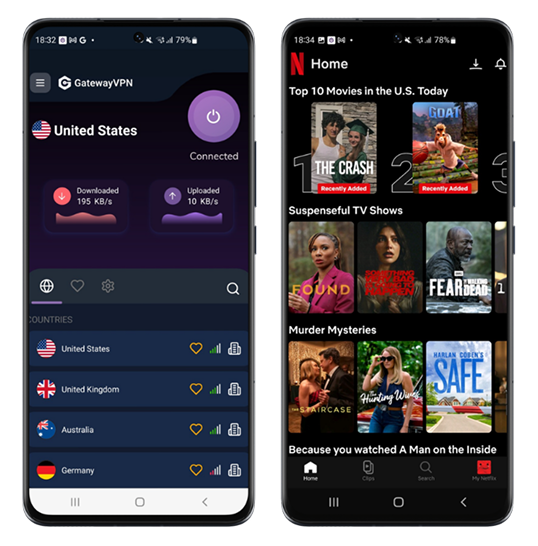
Yes, you can use Netflix with a VPN on Android. Usually.
That little “usually” is doing some heavy lifting, though. Netflix can work through a VPN on an Android phone or tablet, but it depends on a few things: the VPN server you connect to, the quality of the IP address, how Netflix reads your location, and whether the app was opened before or after the VPN connection kicked in.
In other words, it’s not just “turn on VPN, press play, magic happens.” Sometimes it is that easy. Lovely when it is. But other times Netflix gets picky.
Netflix actively checks for VPN and proxy use. When it detects one, it may not always block the app completely. Instead, Netflix says you might only see TV shows and movies that it owns worldwide rights for. So the app still opens, your account still works, but the library can look weirdly thin — like someone quietly removed half the shelves while you weren’t looking.
That’s why the order matters on Android. Connect to your VPN first, make sure the connection is active, then open Netflix. If Netflix was already running in the background, close it and reopen it. Small thing. Helps more than you’d think.
GatewayVPN keeps this process straightforward for Android users: open the app, connect to a server, then launch Netflix with a private, encrypted connection already in place. No maze of settings. No tinkering with obscure Android menus just to watch one episode. And if one server doesn’t behave, switching to another takes a few seconds — which is exactly how it should be.
Why Use a VPN with Netflix on Android?
A VPN isn’t some mysterious hacker tunnel with green code flying everywhere. Most of the time, it’s much simpler than that: you tap connect, your Android device routes traffic through a VPN server, and your connection gets an extra privacy layer before it reaches the internet.
For Netflix, that can be useful in a few everyday situations.
Access Netflix while traveling
Travel has a way of messing with your routines. Your charger disappears. The hotel pillows are either bricks or marshmallows. And Netflix? Netflix might look different the second you open it abroad.
Because Netflix libraries can change by country, you may not see the same shows and movies you usually watch at home. That’s irritating when you’re halfway through a series and just want to continue where you left off.
Using a VPN on Android can help you keep a more familiar streaming setup while you’re away. So whether you’re killing time at the airport, sitting in a rental apartment, or trying to wind down after a long day somewhere unfamiliar, you’re not starting from scratch.
Keep your mobile connection private
Public Wi-Fi is convenient, sure. But it’s also a bit of a jungle.
Airport Wi-Fi, hotel Wi-Fi, café Wi-Fi, shared apartment networks — they’re useful, but you don’t always know who else is on the same network or how well that network is managed. Sometimes it’s fine. Sometimes it feels like the router was last updated during the DVD era.
A VPN helps keep your connection private by encrypting your traffic between your Android phone or tablet and the VPN server. That means your browsing and app activity is harder for other people on the same network to peek at. Handy when you’re streaming, checking accounts, messaging people, or just doing normal phone stuff in public.
Avoid network-based streaming restrictions
Some networks don’t like streaming. Or they pretend not to.
Schools, offices, hotels, airports, and shared Wi-Fi networks may block or throttle entertainment apps to save bandwidth or keep people “productive” — whatever that means. You open Netflix, and nothing loads. Or it loads at potato quality. Lovely.
A VPN can sometimes help you get around those network-based restrictions by routing your Android connection through a different encrypted path. It won’t fix a terrible internet connection, of course. If the Wi-Fi is barely alive, no VPN can perform miracles. But when the issue is a blocked or limited streaming app, a VPN may be the difference between staring at a loading circle and actually watching the thing.
Improve privacy on Android
Android devices are constantly talking to the internet. Apps refresh. Notifications sync. Streaming services check location and account details. Background stuff happens — lots of it.
When you use a VPN, your traffic is encrypted between your Android device and the VPN server. This helps prevent your mobile carrier, Wi-Fi operator, or other network observers from easily seeing what you’re doing online.
It’s not invisibility. Let’s not get dramatic. But it is a strong privacy upgrade, especially when you’re using Netflix and other apps on networks you don’t control.
How to Use Netflix with VPN on Android
The order matters here. Really. If you open Netflix first and connect the VPN later, the app may keep using the location details it already picked up. So do it the clean way: VPN first, Netflix second.
Simple enough.
Step 1: Download GatewayVPN on Android
Start by installing the GatewayVPN app from the Google Play Store on your Android phone or tablet.
Once it’s installed, open the app and either sign in to your existing account or create a new one. Nothing too dramatic here — just the usual app setup stuff. Account, permissions, maybe a quick tap or two. Done.

Step 2: Connect to a VPN server
Open GatewayVPN and choose the server location you want to use.
After that, tap connect and wait until the VPN connection is active. Don’t rush this part. If Android shows the VPN icon in the status bar, that’s usually your sign that the connection is running properly.
Tiny detail, big difference.
Step 3: Open Netflix
Now launch the Netflix app.
If you’re already signed in, you can start browsing right away. If not, sign in to your Netflix account as usual. Because the VPN connection is already active, Netflix will load after your Android device is connected through the VPN server.
This is where most people expect fireworks. There are no fireworks. Ideally, the app just opens normally — which is exactly what you want.
Step 4: Test playback
Pick a title and press play.
Don’t just browse the catalog and assume everything is fine. Actually test a movie or episode for a minute. If it starts playing, great. You’re set.
If the title doesn’t load, freezes, or Netflix shows a VPN/proxy error, don’t panic and start uninstalling half your phone. First, close Netflix, switch to another GatewayVPN server, reconnect, and then open Netflix again.
A different server can make all the difference. Sometimes that’s the whole fix.
Netflix Not Working with VPN on Android? Try These Fixes
Sometimes Netflix and VPNs get along beautifully. Other times, not so much. You connect, open the app, tap a title, and instead of your show you get an error, a blank catalog, endless loading, or that smug little VPN/proxy warning.
Annoying, yes. Usually fixable, also yes.
Before you assume the whole thing is broken, try these quick Android fixes.
Disconnect and reconnect the VPN
Start with the boring fix. It works more often than it deserves to.
Open GatewayVPN, disconnect, wait a few seconds, then reconnect. This can give your Android device a fresh VPN session and, depending on the server setup, a different connection route or IP address.
Netflix may have flagged the previous connection, or the server may simply be having a fussy moment. A reconnect is the digital version of “turn it off and on again” — not glamorous, but weirdly reliable.
Switch to another VPN server
If reconnecting doesn’t help, try another GatewayVPN server.
You can choose another server in the same country, or pick a nearby location if speed matters more than a specific region. Sometimes one server gets detected while another works normally. That doesn’t mean your phone is cursed. It just means Netflix is picky about certain IP addresses.
Switch server, reconnect, then open Netflix again.
Don’t skip the “open Netflix again” part. Fully close it first if needed, because the app may still be hanging onto old network details in the background.
Force close and reopen Netflix
On Android, apps like to linger. You swipe away, assume they’re gone, and meanwhile they’re still sitting in the background like a nosy neighbor.
If Netflix was opened before you connected to GatewayVPN, it may have already loaded your original location or network data. So force close it properly.
Go to your recent apps and swipe Netflix away. If that doesn’t do it, open your Android settings, find Netflix under your apps list, and tap Force stop. Then make sure GatewayVPN is connected before launching Netflix again.
Small cleanup. Big chance of fixing the issue.
Clear Netflix app cache
Cached data can also cause trouble. Not always, but often enough to be worth clearing.
On most Android devices, you can do this by going to:
Settings > Apps > Netflix > Storage > Clear cache
This won’t delete your Netflix account. It just clears temporary files the app stored on your device. Think of it as shaking crumbs out of the sofa. The sofa is still there, just less messy.
After clearing the cache, connect to GatewayVPN again and reopen Netflix.
Restart your Android device
Yes, the classic restart. Still undefeated.
Netflix itself recommends restarting Android devices as a general fix for common playback and app problems, and honestly, it’s one of those steps people ignore until nothing else works.
Hold the power button, restart your phone or tablet, then reconnect to GatewayVPN before opening Netflix. This clears out background glitches, stale network sessions, and whatever tiny gremlin was making the app behave oddly.
Very technical explanation, obviously.
Update Netflix and Android
If Netflix still refuses to cooperate, check for updates.
An outdated Netflix app can cause login issues, playback errors, missing features, and strange behavior that looks like a VPN problem but isn’t. Open the Google Play Store, search for Netflix, and update it if there’s a new version available.
Also check your Android system updates. Netflix notes that some errors may require updating either the Netflix app or the operating system, so don’t let your phone sit three updates behind and then blame the VPN for everything. Fair is fair.
Once Netflix and Android are updated, connect to GatewayVPN again, open Netflix fresh, and test playback with a title.
What Does “You Seem to Be Using a VPN or Proxy” Mean?
Ah, the famous Netflix scolding message.
If Netflix shows something like “You seem to be using a VPN or proxy,” it means the app thinks your Android device — or the network you’re connected to — is routing traffic through a VPN, proxy, or similar service. Netflix says this message can appear when your device or network is using one of those connection types.
In plain English: Netflix noticed something about your connection that doesn’t look like a regular home or mobile connection.
That doesn’t always mean you did anything “wrong.” It just means Netflix has detected the VPN server or IP address you’re currently using. When that happens, the app may block playback, show fewer titles, or refuse to stream until the connection changes.
A bit dramatic? Maybe. But that’s Netflix.
Try this before giving up:
First, switch to another GatewayVPN server. This is usually the fastest fix because a different server may use a different IP address or route.
Next, restart Netflix. Fully close the app, don’t just leave it sitting in the background, then open it again after GatewayVPN is already connected.
If the warning still appears, clear the Netflix app cache from your Android settings. Old location or session data can sometimes stick around like gum under a desk.
Finally, reconnect the VPN before opening Netflix. That order matters: connect to GatewayVPN first, wait until the VPN is active, then launch Netflix. Not the other way around.
Most of the time, one of these steps clears the error. And if not, try a different server again — mildly annoying, yes, but often that’s the trick.
Can You Use a Free VPN with Netflix on Android?
You can try. That’s the honest answer.
But using a free VPN with Netflix on Android usually feels like trying to stream a movie through a garden hose. Technically, something might come through. Smoothly? Probably not.
Free VPNs tend to have the same few problems: crowded servers, slow speeds, limited data, and IP addresses that streaming platforms have already seen a thousand times before. When too many users are squeezed onto the same free servers, Netflix playback can stutter, drop quality, or fail before the opening scene even finishes loading.
Then there’s the data limit problem. Some free VPNs give you a small monthly allowance, which sounds fine until you realize streaming eats data like it’s been starving. One episode in decent quality can burn through a free plan quickly. Not ideal.
The bigger issue, though, is detection. Free VPN IP addresses are often overused, recycled, and easy for Netflix to identify. So instead of watching anything, you may end up staring at the VPN/proxy error again. Great entertainment, if your hobby is troubleshooting.
A premium VPN is usually more reliable for Android streaming because it has better server capacity, stronger speeds, cleaner IP management, and fewer people hammering the same connection at once. It’s not magic, and no VPN should pretend Netflix will work perfectly every single time, but the experience is usually far less painful.
That’s where GatewayVPN makes more sense for Android users. You get a fast, private VPN connection without fiddly setup, and if one server doesn’t work with Netflix, you can switch and try another in seconds. For streaming on a phone or tablet, that simplicity matters. Nobody wants to spend half the night debugging a VPN when the whole point was to relax.
Is It Legal to Use Netflix with a VPN on Android?
In most countries, using a VPN on Android is legal. A VPN is just a privacy tool, and plenty of people use one every day for normal things: safer browsing on public Wi-Fi, protecting their connection while traveling, or keeping their mobile data a little less exposed.
So no, tapping “connect” in a VPN app doesn’t suddenly turn your Android phone into a crime scene. Bit dramatic.
That said, Netflix and other streaming platforms have their own terms of use. Those terms may restrict or limit VPN usage, especially when a VPN is used to change how regional content is accessed. In practice, the more common issue is not legal trouble — it’s Netflix detecting the VPN and blocking playback, showing fewer titles, or giving you the VPN/proxy message.
So the balanced answer is this: using a VPN itself is legal in most places, but how a streaming service responds to VPN traffic is up to that platform. GatewayVPN can help you create a private, encrypted connection on Android, but it can’t change Netflix’s rules or guarantee that every server will work with every title all the time.
Not the flashiest answer. But it’s the honest one.
FAQs
How do I use Netflix with VPN on Android?
Connect to GatewayVPN first, wait until the VPN connection is active, and then open Netflix on your Android phone or tablet.
That order is important. VPN first. Netflix second. Once Netflix opens, sign in if needed, choose a title, and test playback. If something doesn’t load properly, switch to another GatewayVPN server and reopen Netflix.
Why is Netflix not working with my VPN on Android?
Usually, it’s one of a few things: Netflix detected the VPN server, the app loaded your location before the VPN connected, or the Netflix app is holding onto old cached data.
Start with the easy fixes. Disconnect and reconnect GatewayVPN, switch to another server, force close Netflix, then reopen it. If it’s still being stubborn, clear the Netflix cache or check for app and Android updates. Tedious? A little. But it often works.
Should I open Netflix before or after connecting to the VPN?
After.
Connect to GatewayVPN first, make sure the VPN is active, and only then open Netflix. If Netflix was already open in the background, close it properly and relaunch it after connecting.
Otherwise, Netflix may keep using the location or network details it grabbed before the VPN was turned on. Apps do that. Sneaky little things.
Does Netflix block VPNs on Android?
Netflix can detect some VPN or proxy connections on Android, yes. When that happens, you may see a VPN/proxy error, have trouble playing a title, or notice that the catalog looks smaller than expected.
That doesn’t mean every VPN server is blocked forever. Try switching GatewayVPN servers, reconnecting, and reopening Netflix. Sometimes a fresh server is all you need.
Can I use Netflix with VPN on Android TV?
Yes, but Android TV is a bit different from an Android phone or tablet.
On a phone, you install GatewayVPN from the Google Play Store, connect, and open Netflix. On Android TV, the setup may depend on your device, TV model, app support, or whether you need to configure the VPN through your router instead.
For full steps, check our Android TV or router VPN setup guide if you’re watching on a smart TV instead of a mobile device.
Conclusion
Using Netflix with a VPN on Android isn’t complicated, but the order does matter.
Install GatewayVPN on your Android phone or tablet. Connect to a VPN server. Wait until the connection is active. Then open Netflix and start streaming. That’s the cleanest way to do it, and honestly, it saves you from a lot of the usual app weirdness.
If Netflix doesn’t work right away, don’t throw the phone across the room. Switch to another GatewayVPN server, close and reopen Netflix, and try again. Sometimes one server gets flagged while another works just fine. It’s annoying, yes, but it’s usually not a big mystery.
For Android users who want a faster, more private way to stream while traveling, using public Wi-Fi, or dealing with network restrictions, GatewayVPN keeps the setup simple. No overthinking it. No messy configuration.
Download GatewayVPN for Android, connect before opening Netflix, and stream with a private VPN connection wherever you are.


 By Nolan A. Pierce
 By Diego Castillo