
Nothing kills race-day excitement faster than opening F1 TV Pro, settling in for lights out, and getting smacked with a “restricted geographic region” message instead of the starting grid.
Annoying? Very. Surprising? Not really.
F1 TV Pro is only available in certain countries because of broadcasting rights, which means your access can change depending on where you are. One week you’re watching practice sessions, onboard cameras, team radio, and race replays without a hitch. The next, you’re traveling abroad, connecting from the wrong country, or stuck behind some weird location error that makes it feel like the app has personally decided to ruin your Sunday.
That’s where a F1 TV Pro VPN comes in.
With GatewayVPN, you can connect through supported VPN locations and open F1 TV Pro with a secure, private connection. GatewayVPN can unblock F1 TV Pro on our Canada, France, and Switzerland servers, which gives you practical options if F1 TV is blocked in your current location or showing a geo-blocking error.
In this guide, we’ll explain why F1 TV geo-blocking happens, what the restricted geographic region message actually means, how to use GatewayVPN with F1 TV Pro, and what to do if F1 TV is not working with VPN. Because yes, sometimes streaming apps get fussy. Tiny little divas, honestly.
Why Does F1 TV Pro Show a Restricted Geographic Region Error?
F1 TV Pro can be a bit picky about where you’re watching from. Not because the app is broken, usually, but because Formula 1 streaming rights are handled country by country. One country gets full F1 TV Pro access. Another gets limited content. Another gets nothing but a polite little error message that feels anything but polite.
That’s where the F1 TV restricted geographic region message comes from.
When you open F1 TV, the service checks your IP address. Your IP address is basically the return label on your internet connection, and it can reveal your approximate location. If F1 TV sees that you’re connecting from a country where F1 TV Pro is not available, it may block the stream before you even get near the race.
And yes, it’s frustrating.
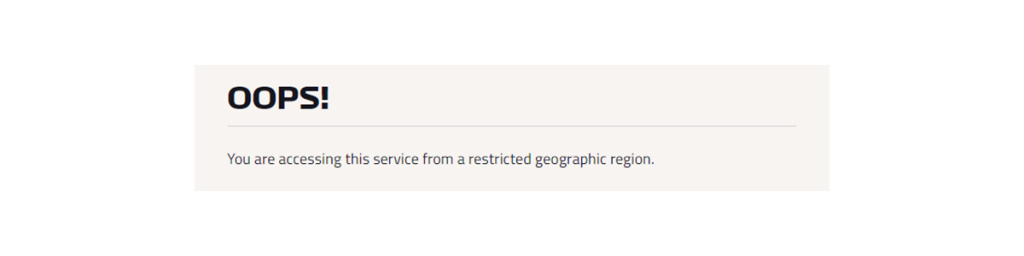
You might have a valid account. You might be paying for the service. You might just be abroad for a weekend, laptop open, snacks ready, fully committed to watching qualifying. But if your current location does not match a supported F1 TV Pro region, F1 TV may show a geo-blocking error anyway.
Sometimes it goes deeper than the IP address too. F1 TV may also look at cookies, account region, payment details, app store country, GPS permissions, or cached location data on your device. So even after connecting to a VPN, the app can occasionally cling to your old location like it’s got trust issues.
Regions Where F1 TV Pro Is Restricted
F1 TV Pro isn’t available everywhere—thanks to exclusive broadcast deals, the service is blocked in several major markets. Here’s a breakdown:
| Country | Why F1 TV is blocked |
|---|---|
| United Kingdom & Ireland | Blocked due to exclusive Sky Sports rights |
| Germany & Austria | Geo-blocked because of Sky Deutschland deals |
| France | New sign-ups are cut off; live streams only via Canal+ |
| Italy & Spain | Blocked due to local agreements with Sky Italia and Movistar+ |
| Australia & New Zealand | Unavailable due to Foxtel and Sky NZ rights |
| Middle East & North Africa | beIN Sports holds regional exclusivity |
If you live in (or are visiting) one of these regions, you’ll find sign-up or streaming options grayed out or blocked—even with a valid subscription. This is where a VPN comes in: by connecting to a supported country, you can bypass these regional locks and access full F1 TV Pro features.
How to Watch F1 TV Pro With GatewayVPN
The basic idea is simple: connect to a supported VPN server first, then open F1 TV Pro. Do it the other way around and F1 TV may already have clocked your original location, which is when the whole thing can get a bit messy.
Here’s the clean way to do it.
Step 1: Download GatewayVPN
Start by downloading GatewayVPN on the device you want to use for F1 TV Pro. Install the app, open it, and sign in to your account.
Nice and easy. No engineering degree required.
Step 2: Connect to a Supported F1 TV Pro VPN Server
Open GatewayVPN and connect to one of our supported F1 TV Pro server locations.
For F1 TV Pro, use:
GatewayVPN can unblock F1 TV Pro on these servers, so they’re the best places to start if you’re seeing an F1 TV restricted geographic region error.
Step 3: Open F1 TV Pro
Once GatewayVPN is connected, open the F1 TV website or app. Sign in to your F1 TV account as usual.
Small thing, but worth mentioning: if F1 TV was already open before you connected to the VPN, close it completely and reopen it. Apps can be stubborn like that. They remember things.
Step 4: Start Watching
Choose the race, qualifying session, practice session, replay, onboard camera, or show you want to watch.
If everything lines up, F1 TV Pro should load through your GatewayVPN connection. If not, don’t panic and start rage-clicking just yet. Usually, it’s a cookie, cached location, or server issue — annoying, yes, but fixable.
How to Watch F1 TV Pro on Different Devices
F1 TV Pro works across several devices, but the setup is not always identical. A phone is easy. A browser is usually easy too. Smart TVs, though? That’s where things can get a little “why is this more complicated than qualifying strategy?”
Here’s how to use GatewayVPN with F1 TV Pro depending on the device you’re watching on.
iPhone and iPad

On iPhone or iPad, the simplest method is to install GatewayVPN directly on your device.
Download GatewayVPN from the App Store, sign in, and connect to a supported F1 TV Pro server in Canada, France, or Switzerland. Once the VPN is connected, open the F1 TV app and sign in to your account.
If F1 TV was already open before you connected to GatewayVPN, close it completely and reopen it. iOS apps can hold onto old location data, and yes, it’s as annoying as it sounds.
Android Phones and Tablets
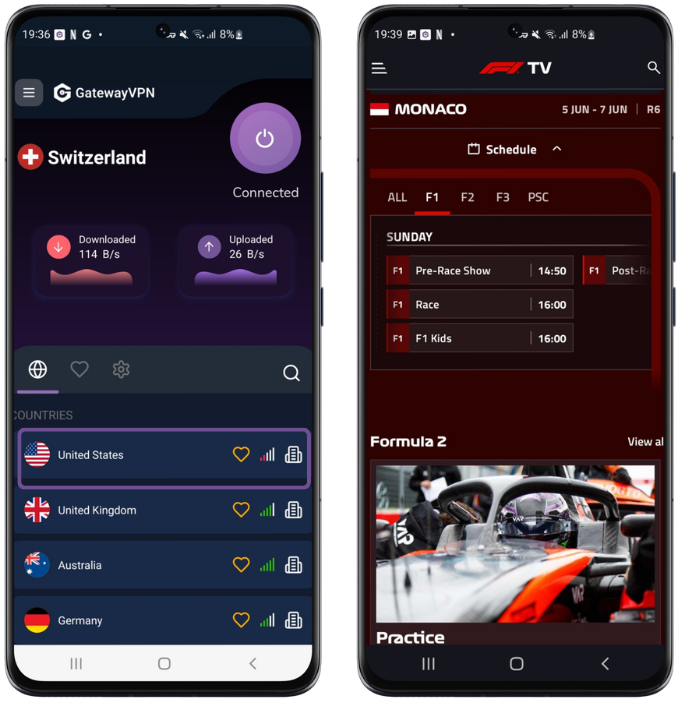
On Android, install GatewayVPN from Google Play, open the app, and connect to a Canada, France, or Switzerland server before launching F1 TV.
After the VPN connects, open the F1 TV app and try loading the stream again. If you still see an F1 TV restricted geographic region error, clear the F1 TV app cache, restart the app, and reconnect to GatewayVPN.
Small cleanup. Often does the job.
PC and Mac
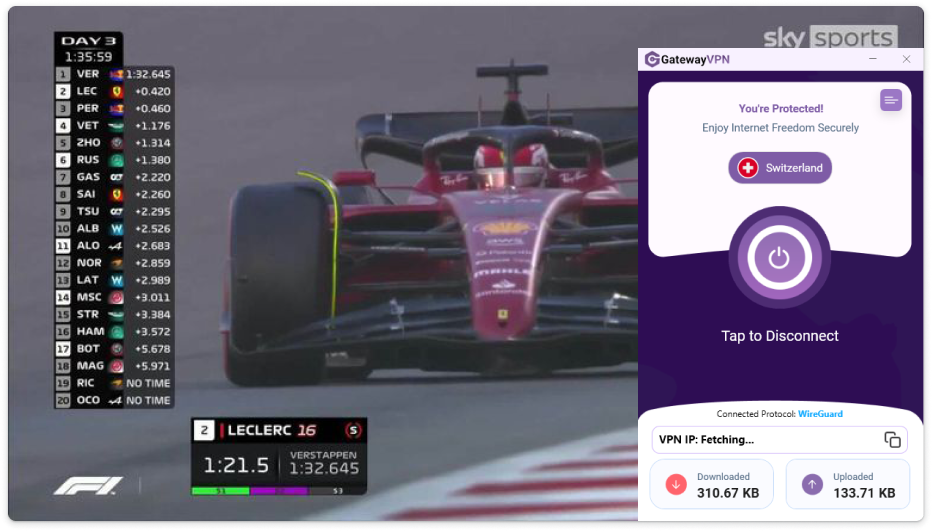
On Windows or Mac, you can watch F1 TV Pro through your browser while connected to GatewayVPN.
Open GatewayVPN on your computer, connect to one of the supported F1 TV Pro locations, then visit the F1 TV website. If the stream does not load, clear your browser cookies for F1 TV and try again in a fresh browser window.
For the smoothest setup, connect to GatewayVPN first, then open your browser. Not the other way around. Browsers are nosy little things and they remember more than they should.
Smart TV, Apple TV, and Fire TV Stick
For devices that do not support VPN apps directly, such as some streaming sticks and older smart TVs, you can still use GatewayVPN by protecting the connection before it reaches the device.
Common options include:
- Installing GatewayVPN on your router
- Sharing a VPN connection from your Windows or Mac computer
- Casting or AirPlaying from a phone, tablet, or computer connected to GatewayVPN
- Using a compatible streaming device that supports VPN apps
For the full setup steps, you can use these guides:
- How to Set Up GatewayVPN on Your Router
- How to Set Up GatewayVPN on Smart TVs
- How to Set Up GatewayVPN on Apple TV
- How To Set Up GatewayVPN on Amazon Fire TV
The main rule stays the same: connect to GatewayVPN first, use a supported F1 TV Pro server, then open F1 TV. If the device cannot run the VPN itself, route its internet connection through something that can.
Best GatewayVPN Servers for F1 TV Pro
For F1 TV Pro, don’t just connect to any random VPN location and hope for the best. That’s a quick way to end up staring at the same geo-blocking message again, wondering whether your internet has personally betrayed you.
Use a GatewayVPN server that works with F1 TV Pro.
The best GatewayVPN server locations for F1 TV Pro are:
Canada
A strong first choice if you want to open F1 TV Pro through a supported VPN location. Connect to Canada, reopen F1 TV, and check whether the stream loads properly.
France
Another good option for F1 TV Pro. If the Canada server is busy or F1 TV is still being difficult, switch to France and try again.
Switzerland
A useful alternative when you need another supported location. Sometimes one server works better than another depending on your device, app, browser, or the mood of the streaming gods. Who knows.
In most cases, start with Canada, France, or Switzerland, then stick with the server that gives you the smoothest stream. If F1 TV Pro does not work right away, disconnect, choose another supported GatewayVPN server, and reopen the app or website from scratch.
Tiny step. Big difference.
Why Is F1 TV Not Working With VPN?
Sometimes you do everything “right” and F1 TV still refuses to cooperate. Lovely stuff.
If F1 TV is not working with VPN, it does not always mean the VPN itself is broken. Streaming apps can be picky, especially when they’re trying to enforce geo-blocking rules. F1 TV may detect the VPN server, remember your old location through cookies, or get conflicting signals from your device.
That last one catches people out.
For example, your IP address might say Canada, but your browser cookies still say you were somewhere else five minutes ago. Or your phone’s location services may be switched on. Or your F1 TV account, payment method, or app store region may point to a different country. When those details don’t line up, F1 TV can throw a restricted geographic region error and basically say, “Nope, not today.”
A few common reasons F1 TV may not work with a VPN include:
- The VPN server has been detected by F1 TV.
- Your browser has old cookies or cached location data.
- The F1 TV app was opened before the VPN connected.
- Your device is leaking location information.
- Your account, billing, or app store region does not match the location you’re trying to use.
- The server you picked is overloaded or just not playing nicely at that moment.
So, yes, it can be irritating. But it’s usually not some grand technical disaster. Most of the time, you just need to switch servers, clear the old location data, restart the app, and let F1 TV meet your VPN connection properly this time.
How to Fix F1 TV Not Working With VPN
If F1 TV is still not working with your VPN, don’t scrap the whole setup just yet. Most fixes are boringly simple, which is both good news and mildly insulting after you’ve spent 20 minutes glaring at your screen.
Start here.
Switch to Another GatewayVPN Server
Disconnect from your current VPN server and connect to another supported GatewayVPN location for F1 TV Pro.
Try:
Sometimes one server gets blocked, crowded, or just has a bad day. It happens. Switching to another supported location can give F1 TV a fresh connection to work with.
After changing servers, close F1 TV completely and open it again. Don’t just refresh the page if you’re using the app. Fully restart it.
Clear Cookies and Cache
Old cookies can quietly ruin everything.
Your browser may still have location data from before you connected to GatewayVPN. So even if your VPN IP address now points to Canada, France, or Switzerland, F1 TV may still remember your previous location and block the stream.
Clear your cookies and cache for F1 TV, then reopen the website while GatewayVPN is already connected.
A clean slate. That’s the whole trick.
Restart the F1 TV App or Browser
If F1 TV was open before you connected to the VPN, close it and start again.
On mobile, swipe the app away completely. On desktop, close the browser tab or restart the browser if needed. Then reconnect to GatewayVPN, open F1 TV again, and sign in.
Apps are strange little creatures. Sometimes they only believe the location they saw first.
Disable Location Services
On phones and tablets, your GPS location can conflict with your VPN location. Your IP address may say one thing, while your device location says another. F1 TV may not love that contradiction.
Go into your device settings and turn off location access for F1 TV. Then reopen the app while connected to GatewayVPN.
Check Your Account and App Store Region
This part is less fun, but it matters.
F1 TV access may depend on more than your IP address. Your account region, payment method, or App Store / Google Play country may also affect what you can access. If those details point to a country where F1 TV Pro is not available, you may still run into restrictions.
Not always. But sometimes, yes.
Contact GatewayVPN Support
If you’ve tried the basic fixes and F1 TV Pro still will not load, contact GatewayVPN support. Server availability can change, and support can point you toward the best current option for F1 TV Pro.
No need to wrestle with it forever. Race weekends are stressful enough.
Can You Use a VPN for F1 TV Pro While Traveling?
Yes, you can use a VPN for F1 TV Pro while traveling, and honestly, that’s one of the most common reasons people need one in the first place.
You might have F1 TV Pro working perfectly at home. Then you fly somewhere for work, a holiday, a family visit, whatever it is, and suddenly the app starts throwing a restricted geographic region message at you like you’ve done something suspicious. You haven’t. You’re just in a different country.
The problem is that F1 TV Pro access depends on where your connection appears to be coming from. So when you travel to a country where F1 TV Pro is blocked or limited, F1 TV may not show the same live races, replays, onboard feeds, or other content you normally expect.
A VPN allows you to connect through another server location before opening F1 TV. With GatewayVPN, you can connect to our Canada, France, or Switzerland servers, then open F1 TV Pro through that secure VPN connection.
Just remember the order. It matters more than people think.
First, connect to GatewayVPN. Then open F1 TV Pro. If the app was already open, close it properly and start fresh. Otherwise, F1 TV may keep using your old location data, and then you’re back in error-message land. Nobody wants to live there.
F1 TV Pro VPN FAQs
Can I watch F1 TV Pro with a VPN?
Yes, you can try watching F1 TV Pro with a VPN by connecting to a server location where F1 TV Pro works.
With GatewayVPN, use our Canada, France, or Switzerland servers before opening F1 TV Pro. These are the GatewayVPN locations that can unblock F1 TV Pro, so they’re the sensible starting point. Not some random server halfway across the map. Start where it actually works.
Why does F1 TV say I am in a restricted geographic region?
F1 TV usually shows a restricted geographic region message when your IP address appears to come from a country where F1 TV Pro is not available.
Basically, F1 TV checks your location before giving you access to the stream. If your current country is blocked, limited, or covered by a different broadcaster, the app may stop you before the session loads. Brutal timing, especially five minutes before lights out.
Why is F1 TV not working with my VPN?
If F1 TV is not working with VPN, the VPN server may have been detected, or F1 TV may still be reading old location data from your browser or device.
Cookies, cache, GPS permissions, account region, billing details, and app store country can all make things messy. Your VPN might say “Canada,” while your device is quietly whispering, “Actually, no.” And F1 TV, naturally, chooses chaos.
Which GatewayVPN server should I use for F1 TV Pro?
Use a GatewayVPN server in Canada, France, or Switzerland.
If one location does not work right away, switch to another supported server, close F1 TV completely, and open it again. In my opinion, that restart step matters more than people think. Apps love clinging to old location data.
Does GatewayVPN unblock F1 TV Pro?
Yes, GatewayVPN can unblock F1 TV Pro on our Canada, France, and Switzerland servers.
Connect to one of those locations first, then open F1 TV Pro. If you still see a geo-blocking error, clear cookies, restart the app, or try another supported server.
Do I need to clear cookies before using F1 TV with a VPN?
Not always, but it can help a lot.
If F1 TV keeps showing a location error after you connect to GatewayVPN, clear your cookies and cache for F1 TV, then reopen the website while the VPN is already connected. It’s a small cleanup job, but sometimes that’s the thing that finally knocks the error loose.
Conclusion
F1 TV Pro is brilliant when it works. Live sessions, replays, onboard cameras, team radio, all that good racing chaos in one place. But when geo blocking gets in the way, the experience can go from “race weekend sorted” to “why am I staring at this restricted geographic region message again?” very quickly.
The fix is usually straightforward.
Download GatewayVPN, connect to a supported F1 TV Pro VPN server, then open F1 TV Pro. With GatewayVPN, use our Canada, France, or Switzerland servers for F1 TV Pro. Those are the server locations that can unblock it, and they’re the ones worth trying first.
If F1 TV is not working with VPN, don’t assume the whole thing is doomed. Switch between Canada, France, and Switzerland. Clear your cookies. Restart the app or browser. Disable location services if needed. And if it still acts stubborn, contact GatewayVPN support so we can point you toward the best current server option.
Race weekends are short. Error messages should be shorter.
Download GatewayVPN and watch F1 TV Pro with a secure VPN connection through Canada, France, or Switzerland.