

NBA League Pass is the National Basketball Association’s subscription streaming product that delivers live and on-demand regular-season games, full replays, and condensed game formats across phones, tablets, web browsers, and TV devices.
The U.S. version of League Pass focuses on out-of-market coverage and offers multiple package options, such as full-season or team packages, through the NBA and its partner providers.
Regional blackouts occur when a game is televised locally or nationally in a subscriber’s home market; those exclusive broadcast rights prevent the corresponding League Pass feed from streaming live in that market, and the league’s blackout policy governs when the game becomes available on League Pass after the original broadcast.
A virtual private network (VPN) routes your internet traffic through a remote server so streaming services see the server’s IP and location instead of your actual one. By connecting to a VPN server located in a region where a specific NBA game is not subject to local broadcast rights, League Pass will treat you as being outside the blackout area and allow the live feed to play.
Make the VPN connection before opening the League Pass app or website so the service registers the alternative location.
Quick overview: how blackouts work and how a VPN affects them
Broadcast rights give local or national broadcasters exclusive rights to show specific NBA games in defined markets; when a game is carried locally or nationally, League Pass blocks the live feed for viewers whose connection appears to be inside that market.
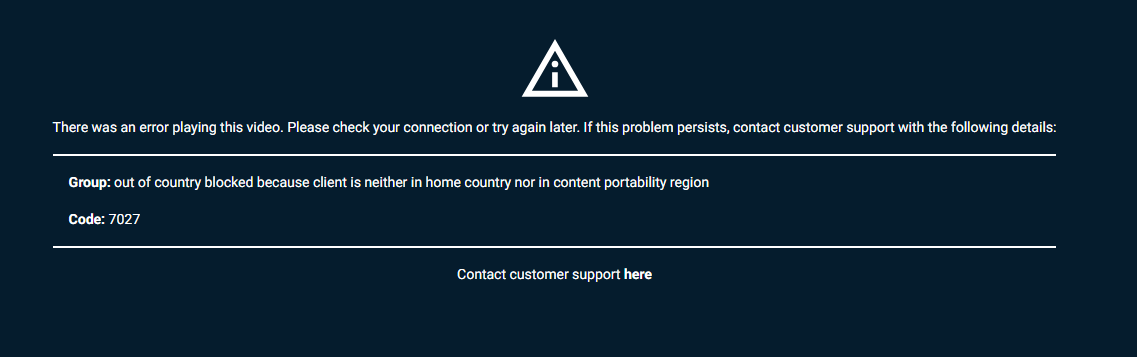
Streaming platforms determine a viewer’s location primarily from the IP address and related network data. A VPN routes your internet traffic through a remote server so the service sees the server’s IP and location instead of yours, allowing access from outside the blackout area.
Imagine the Los Angeles Lakers play the Houston Rockets in Los Angeles. If a local Los Angeles broadcaster carries that game, League Pass blocks the live League Pass stream for any connection that appears to be inside the Los Angeles market, so a viewer physically in LA sees the local broadcast instead of the League Pass feed.
A viewer in New York does not fall inside that local market and can open League Pass to watch the game live. If an LA viewer connects their VPN to a server located in New York before opening League Pass, the service sees the VPN server’s IP (which appears to be in New York) and will allow the League Pass live stream to play.
Prepare before you stream
You need a few items and checks in place before attempting to bypass a League Pass blackout so the setup and playback go smoothly.
Required accounts and subscriptions:
- Active NBA League Pass subscription.
- A GatewayVPN account and the GatewayVPN app is installed on the device you plan to stream from.
Devices this guide covers:
This guide covers streaming from Android and iOS mobile devices, and from desktop browsers on Windows and Mac.
Recommended pre-checks (short checklist):
- Update the League Pass app and the GatewayVPN app to their latest versions.
- Sign out of League Pass on the device you’ll use, then sign in again after connecting the VPN.
- Disable location services for the League Pass app or the browser where relevant.
- Have a valid payment method available for League Pass account actions.
Step-by-step setup (device-specific)
Connect your VPN and confirm the server location before opening the NBA League Pass app or website so the service registers the VPN server’s IP instead of your device’s.
Desktop (Windows / macOS):
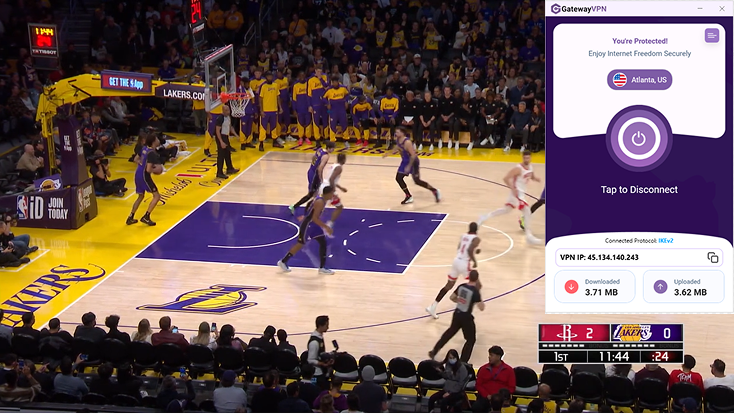
- Install the GatewayVPN desktop app on Windows or macOS.
- Open the GatewayVPN app and sign in to your account.
- Choose a server located outside your home market — pick a US state or another country that is not in the local broadcast territory for the game. This changes the IP and geographic region the site sees.
- After the VPN shows an active connection, clear your browser cache or open a private/incognito window.
- Go to the League Pass website, sign in, and open the game stream.
Mobile (iOS / Android):
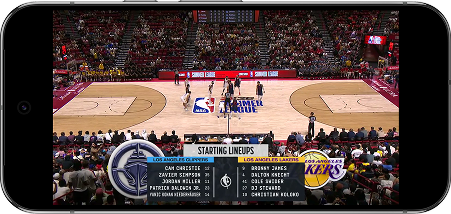
- Install the GatewayVPN app from the App Store or Google Play and sign in.
- From the app, connect to a server outside your home market (select a different US state or a nearby country where the game is not locally broadcast).
- Verify the visible IP/location if you want to confirm the change (use a quick IP lookup).
- Open the League Pass app, sign in if needed, and start the live stream.
How to pick the right server for League Pass
Choose a server whose IP falls outside the game’s broadcast market and that delivers stable, low-latency performance for video streaming.
- Location vs blackout area. Select a server in a city or state that is not part of the game’s local broadcast territory. For U.S. viewers, try a different U.S. state first so the connection appears domestic but outside the local market.
- Proximity and latency. Prefer servers that are geographically close enough to keep latency low. Lower latency reduces startup delay and buffering during live play.
- Capacity and speed. Use a server with enough available bandwidth and low load. A server with consistently higher measured download speed produces smoother video.
- Session stability. Pick a server that maintains the same IP for the duration of the game. Servers that frequently change routes or drop connections interrupt playback.
- Device availability. Confirm that the server location can be selected from the app on the device you plan to use. Some app interfaces limit server choice compared with desktop clients.
Quick testing routine:
- Connect to the candidate server and run a quick IP lookup to confirm the visible location.
- Run a short speed/ping test to check latency and throughput.
- Open League Pass and start the game stream for a minute or two to confirm smooth playback.
- If the feed buffers, switch to another nearby non-blackout server and repeat.
Not sure where to start? Try a major city outside your home market, test it, then move farther away only if you still see the local blackout.
Frequently asked questions
How does a VPN unblock NBA League Pass blackouts?
A VPN changes your visible IP address to a location outside the blackout region, allowing League Pass to deliver the live feed.
Which devices support using a VPN with League Pass?
GatewayVPN works on Windows, macOS, Android, and iOS, so you can stream League Pass on desktops, laptops, and mobile devices running those systems.
What should I do if League Pass still shows a blackout after connecting?
Clear the app cache or browser cookies, restart the device, reconnect to the VPN, and switch to another server outside the blackout market.
Will using a VPN affect streaming quality?
A VPN may add some latency, but choosing a nearby non-blackout server with good speed usually provides smooth playback without buffering.